
What Is the AI Sweater Trend? How to Make the Portrait
See what the AI Sweater Trend looks like and how to make the ChatGPT sweater portrait from one selfie, with raised sleeves, a colored knit, and visible eyes.
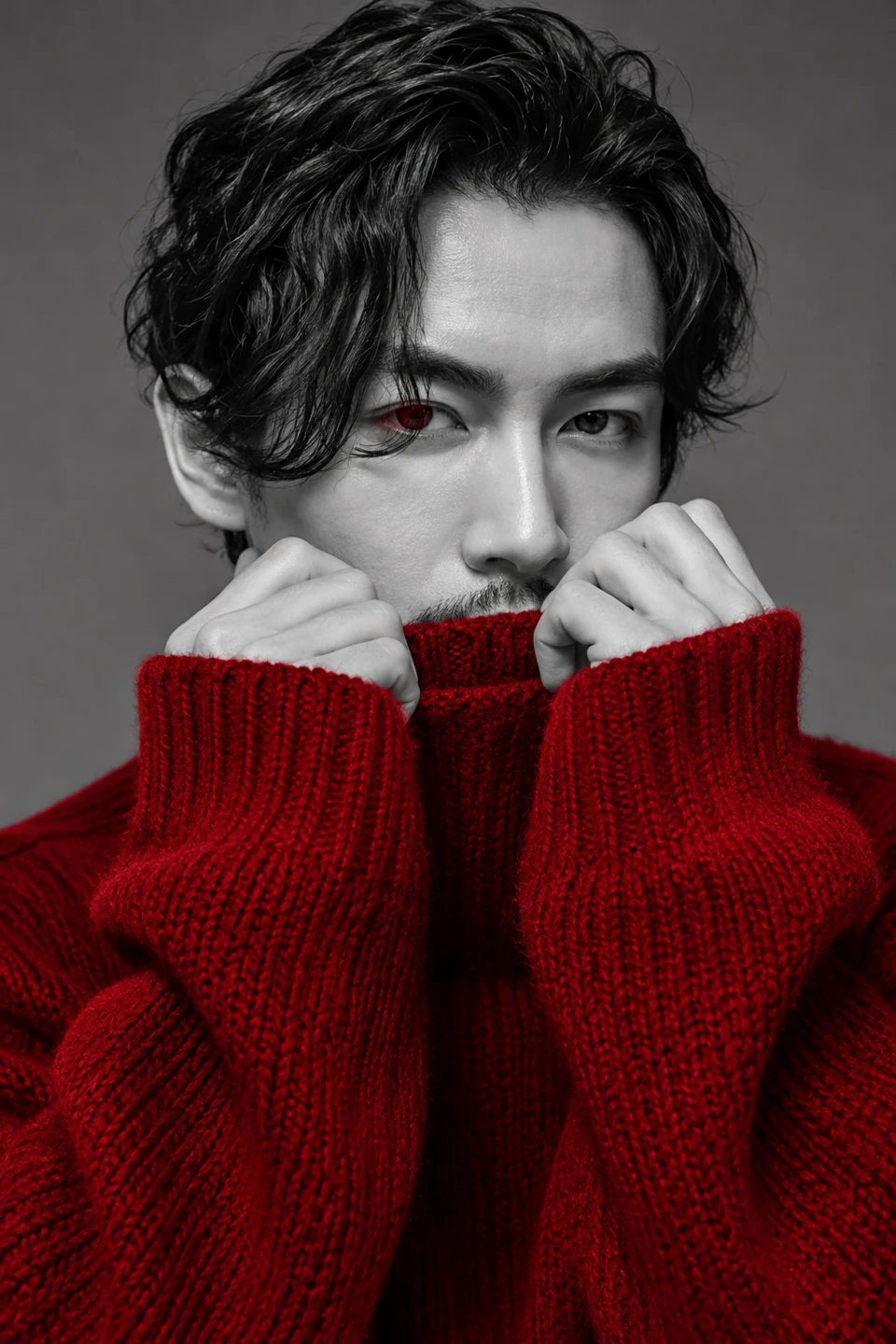
What is the AI Sweater Trend?
The AI Sweater Trend turns one selfie into a close-up black-and-white portrait. A colorful chunky knit stands out against the grayscale face and background, with the long sleeves pulled up to the mouth and the eyes visible. The red sweater above shows the pose and the contrast that make the effect recognizable.
How to make the ChatGPT sweater portrait
- Start with one sharp selfie. Use a head-and-shoulders photo in even light with both eyes visible. If your only option is a group photo, crop it to one person before uploading.
- Choose your knit color and image shape. Open the AI Sweater Image Generator and pick one of six colors. Select 3:4 for a taller crop around the eyes and sleeves, or 4:3 for more space around the shoulders.
- Generate and check the result. Sign in, choose a resolution, and generate the portrait. Open the PNG at full size and compare it with the selfie. Check the hairline, eyes, and any fingertips visible over the cuffs.
Prefer to make the portrait in ChatGPT? Copy the ChatGPT sweater prompt and paste it with the same selfie attached.
Do the eyes and sweater have to match?
Some shared prompts keep the original eye color. Our generator asks the model to tint the irises to match your selected sweater while keeping the eyes natural in shape and appearance. Either approach can produce the same raised-sleeve composition. The prompt shared in this Facebook thread shows the natural-eye-color version.
How to keep the face recognizable
Use a clear photo with a relaxed expression and avoid beauty filters that already distort the face. Check where the cuffs end. If the model covers too much of the face, ask for the sleeves to stop at the mouth with the eyes visible. If a hand looks distorted, try asking for only the fingertips to be visible above the knit. When iterating, keep the same photo and change one instruction at a time so you can see what helped.